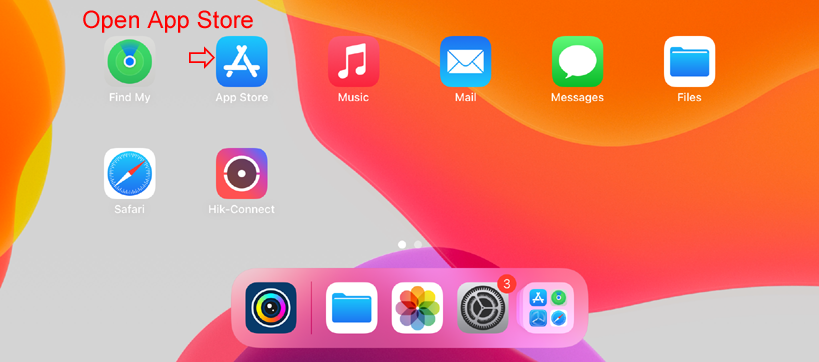
1. Open App Store, or skip to step 3 if the Structure SDK has been installed. Or you can download it using this link:
https://apps.apple.com/us/app/scanner-structure-sdk/id891169722
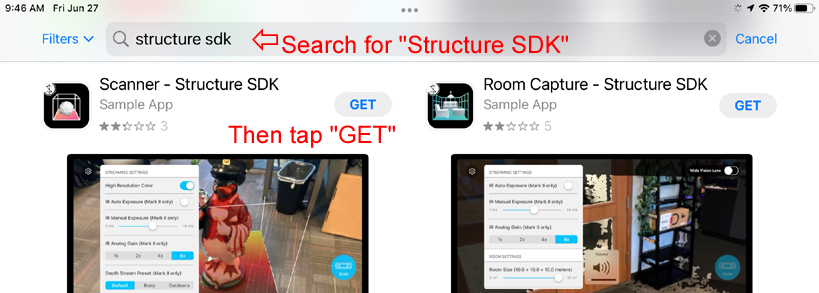
2. Search for "Structure SDK" in the App Store. Choose "Scanner - Structure SDK" to install. Not the "Room Capture" app.
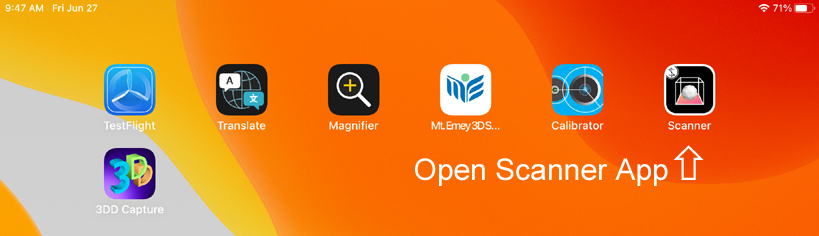
3. Open "Scanner" app.
4. Change settings.
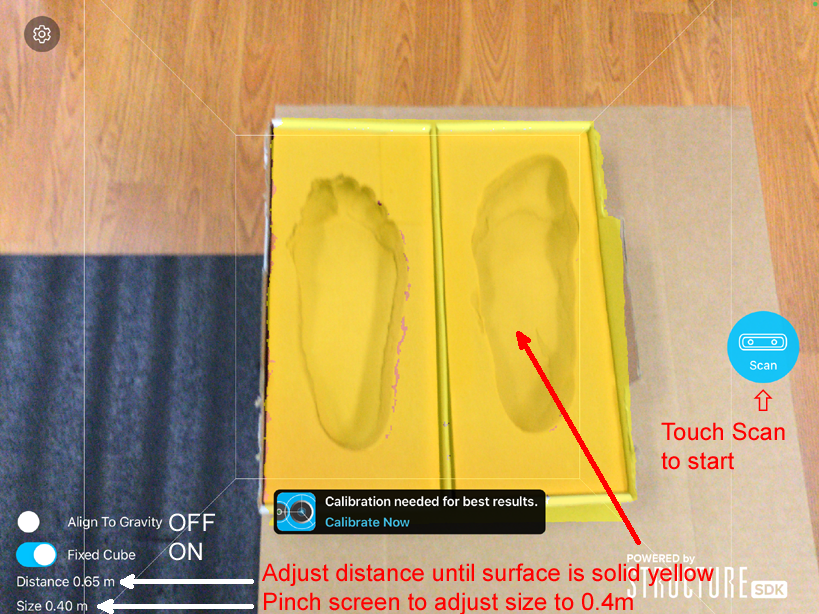
5. Scan slowly and smoothly.
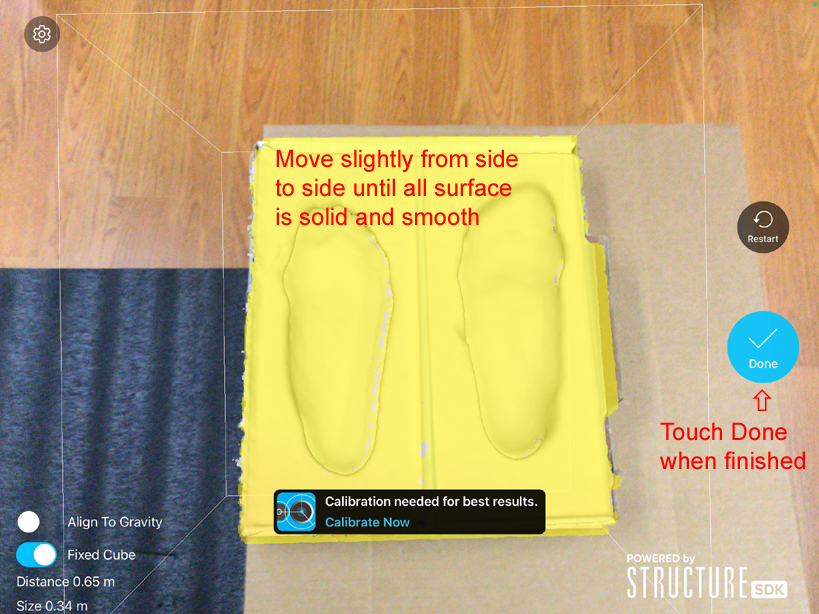
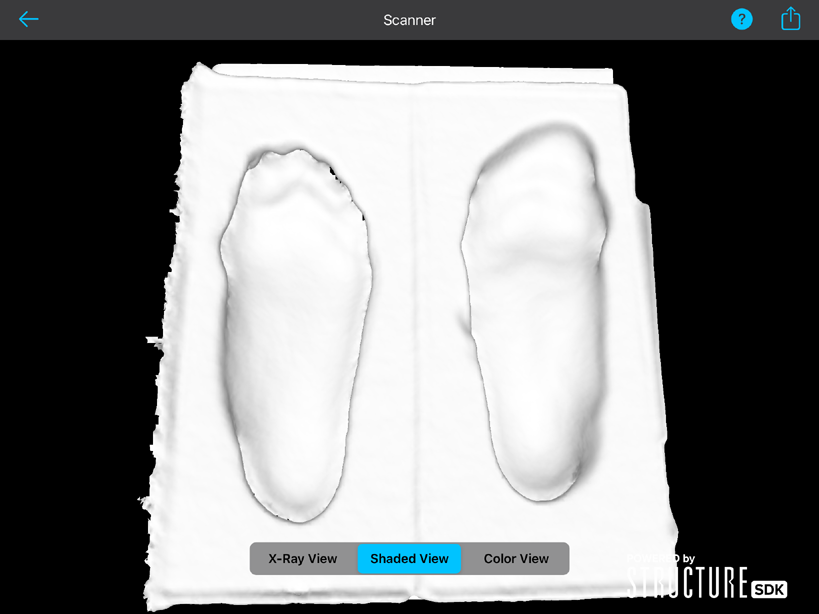
6. The default view is shaded view.
Tap "Color View" to see color.
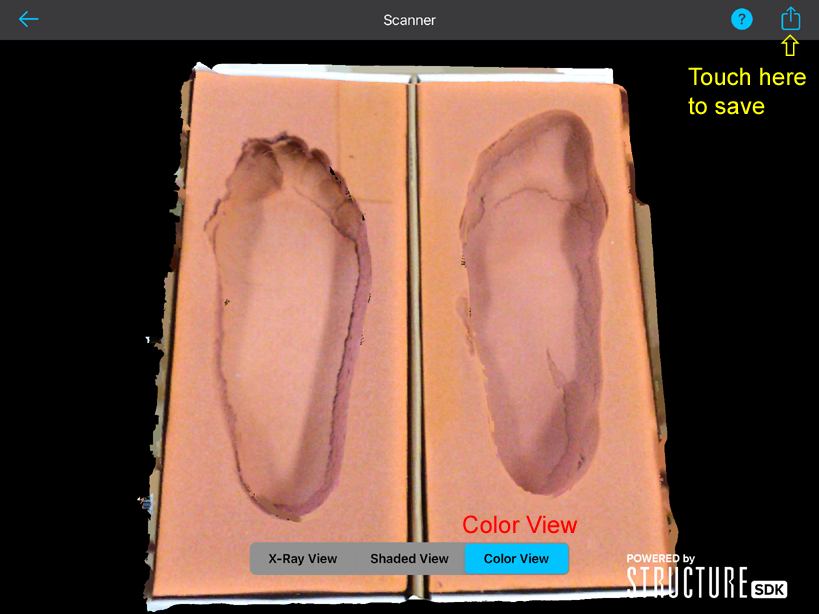
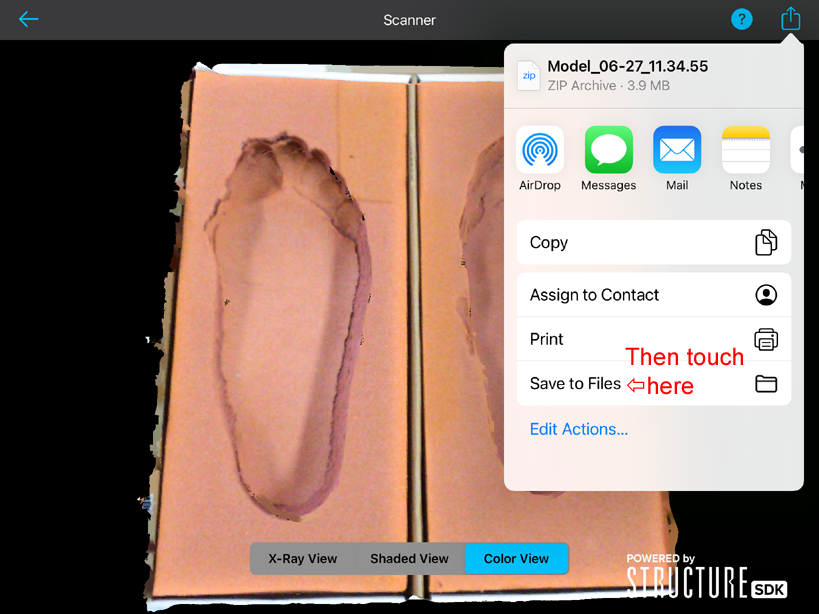
7. Tap the Send button at the top-right corner to save.
8. Select "Save To Files".
9. Select "On My iPad".
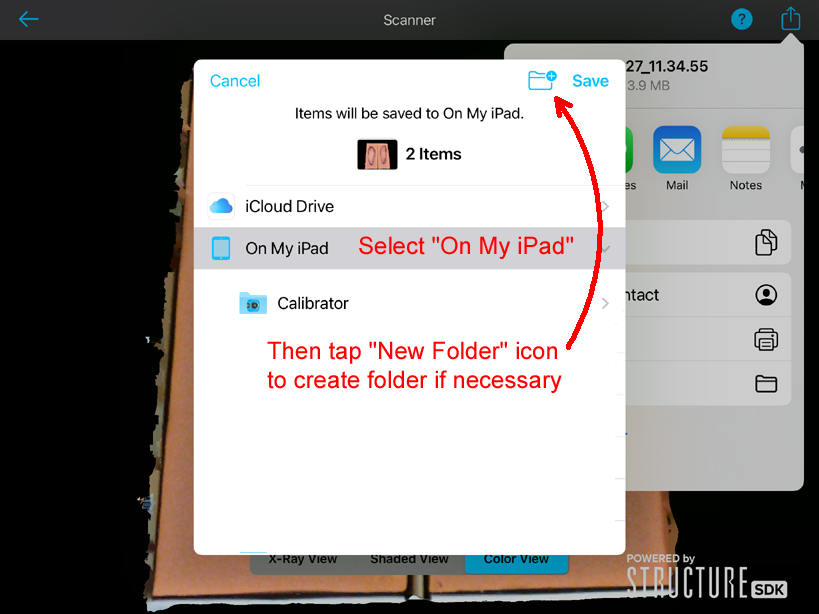
10. Create new folder if necessary.
11. Select save folder.

12. Open browser and follow the steps here:
How To Upload Scans From iPad